Blog
How to create builds
Add guild or community loadouts — gear, abilities, swaps, tags, and notes for your roster.
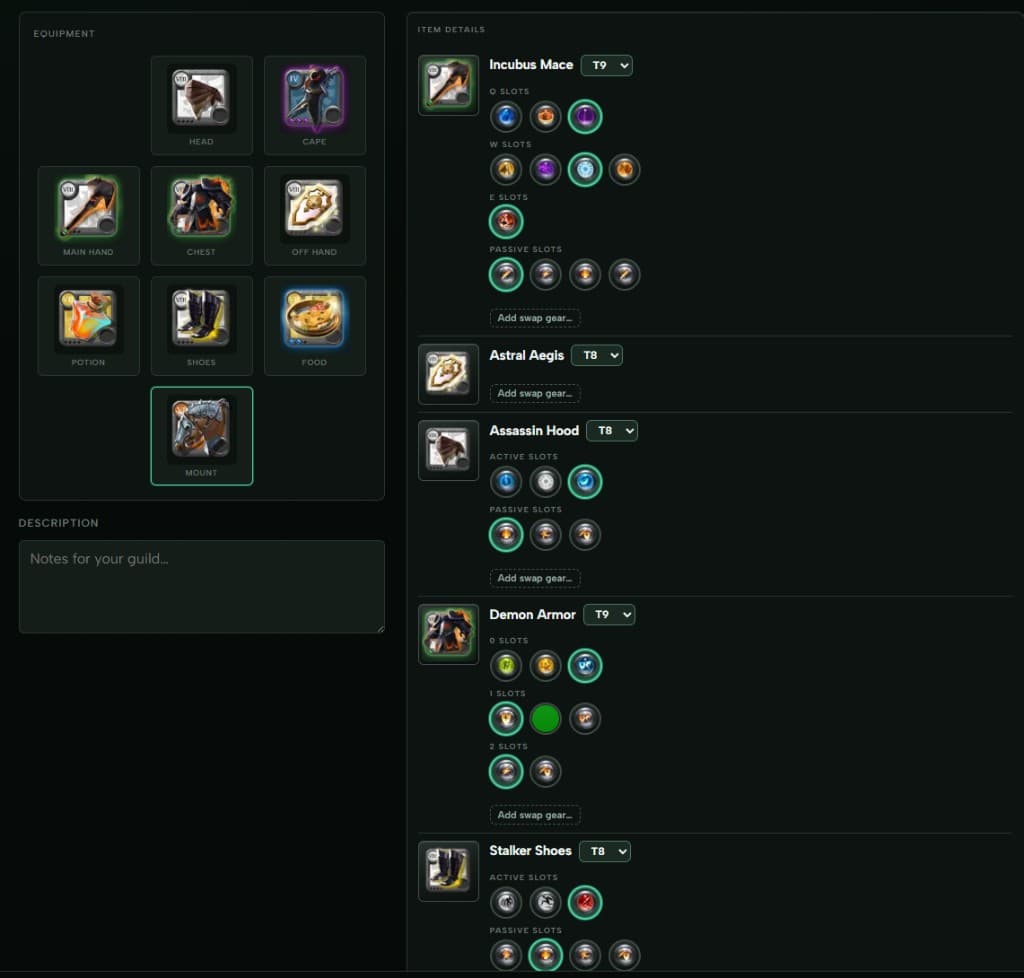
Builds are how your guild stores loadouts — gear, abilities, swaps, and notes — so signups, comps, and regears all pull from the same source.
Where to find Builds
Open your guild dashboard, then Builds under ZVZ or Community.
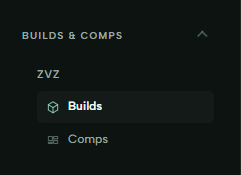
- ZVZ — guild builds created by officers for mass comps and events.
- Community — builds any guild member can add for community content and open events.
Start a new build
On the builds page, click New build.
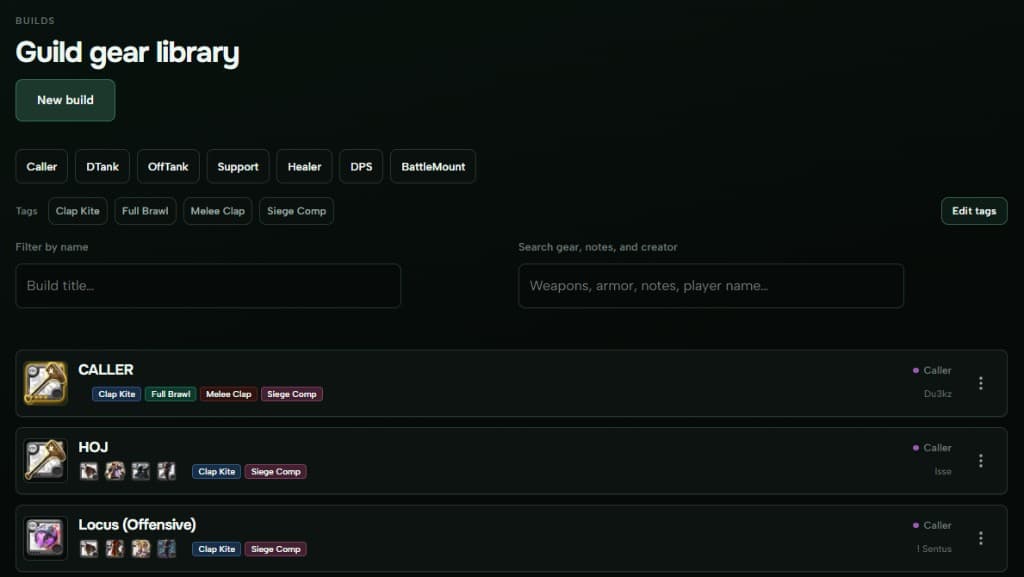
That opens the build editor.
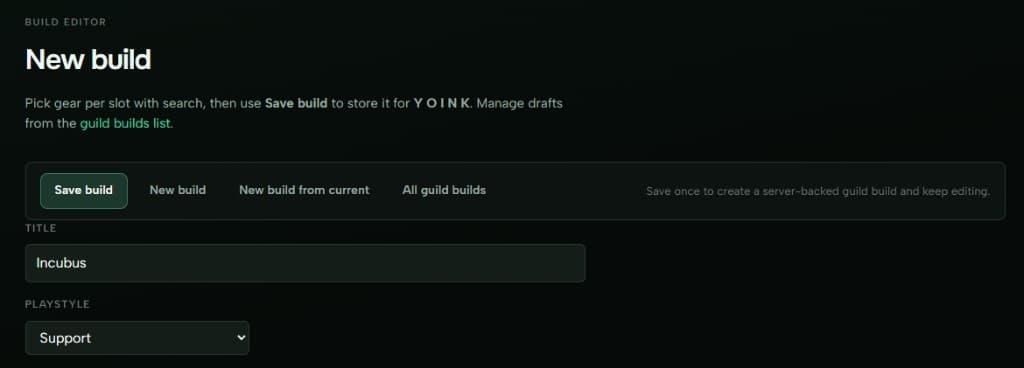
Name, playstyle, and notes
Set the title and playstyle (DPS, Support, Caller, and the rest). Add a description under the gear preview for anything players should know in-fight.
Add gear
Click any slot on the paper doll to start filling the build.
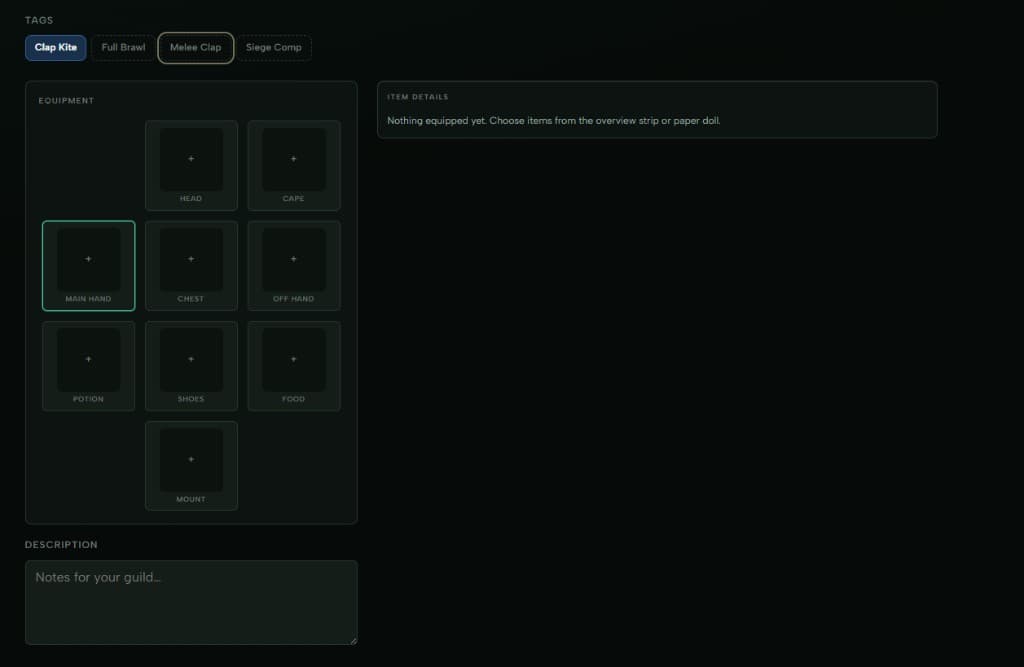
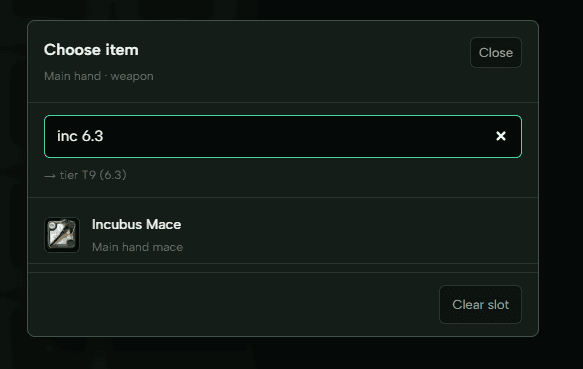
Search for the item you want. You can type the tier right in the search — 4.3, 7, 8, 8.3, and so on after the item name. Press Enter for the first result or click the row.
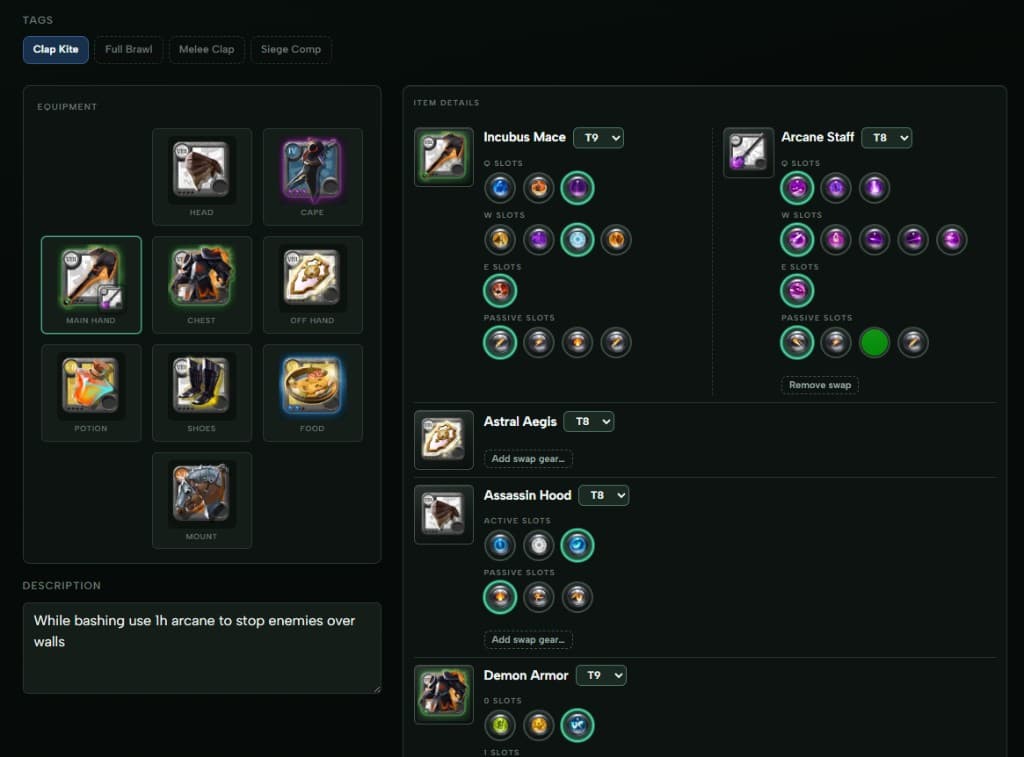
Repeat for every slot you care about (weapon, armor, cape, mount, food, potion).
Abilities
On the right, click the ability icons for each piece to select Q, W, E, passives, and actives. Selected abilities get the green ring.
Swap gear
Need a second weapon or off-hand for a situation? On the item details panel, click Add swap gear… for that slot.
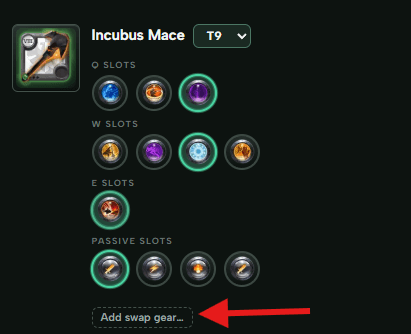
Pick the swap the same way as your main item. You can remove it later with Remove swap.
Tags
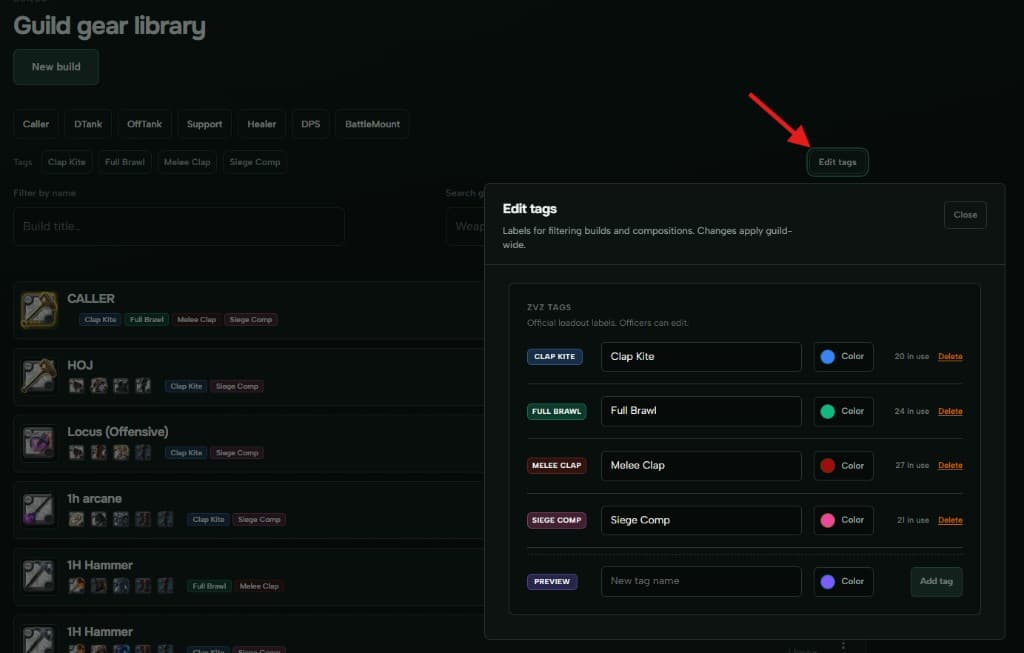
Tags help you filter builds and comps by playstyle or caller line — Clap Kite, Melee Clap, Siege Comp, whatever your guild uses. Select the tags on the build form.

Officers can add or edit tags guild-wide from the Builds or Comps page — click Edit tags, rename, recolor, or delete labels there.
Save
When it looks right, hit Save build. The loadout shows in your guild or community library and is ready for comps, signups, and regear pricing.
More detail
Step-by-step reference: How to create builds and Tags. Share builds in Discord with /build and /zvz-builds — see Discord commands for builds.