Blog
How to assign users to an event
Run the roster board — drag signups into comp slots, autofill, ping players, and finish the event for payout.
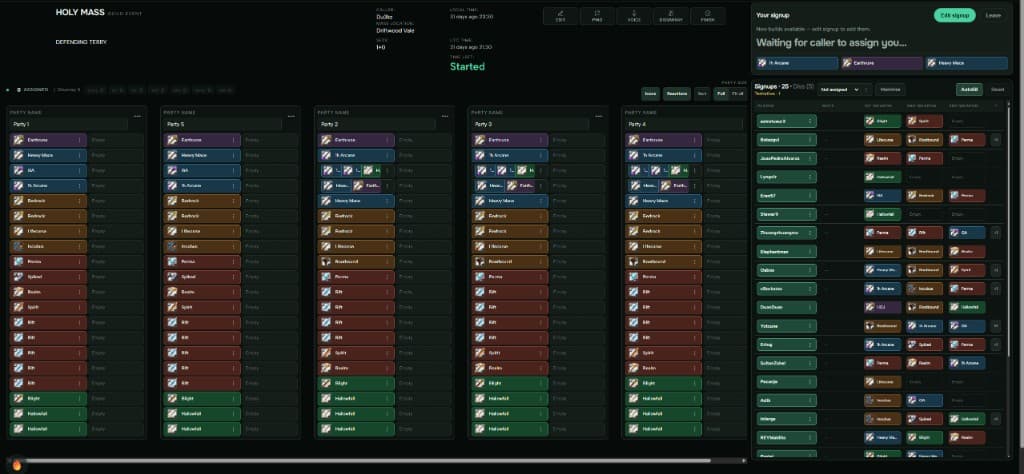
Once you have created an event, open the event page and start placing players. The comp board is on the left; Signups is on the right.
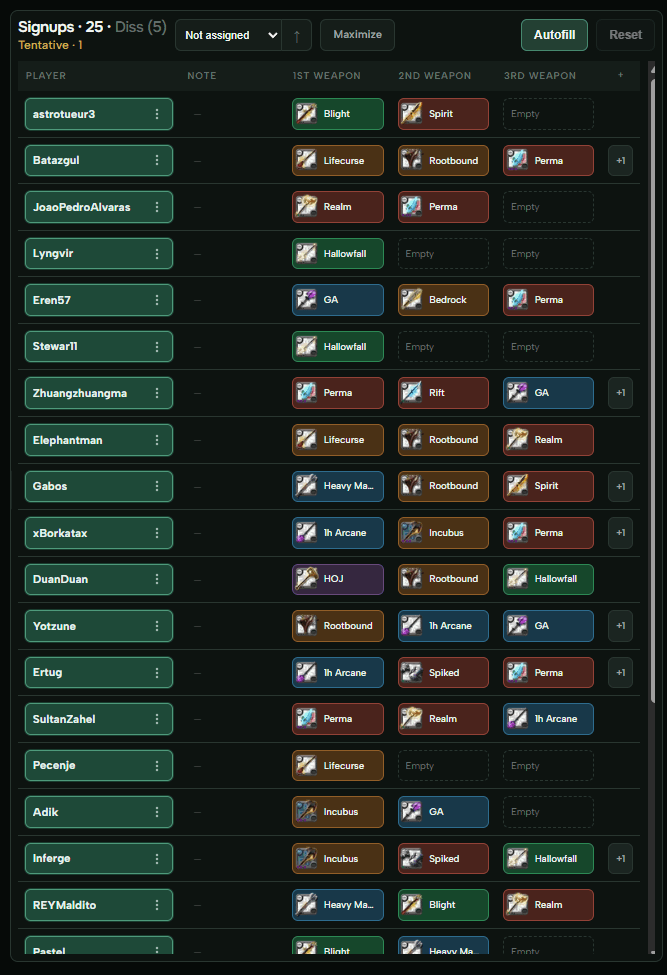
Signups panel
Here you see everyone who signed up — their weapon picks, notes, and whether they are tentative. Filter with the dropdown (e.g. Not assigned) to focus on who still needs a seat.
Comp parties
On the left are the parties from the composition you picked for this event. Each row is a role slot; empty slots say Empty until someone is placed.
Assign manually — drag and drop
Drag a player from Signups onto the slot you want.
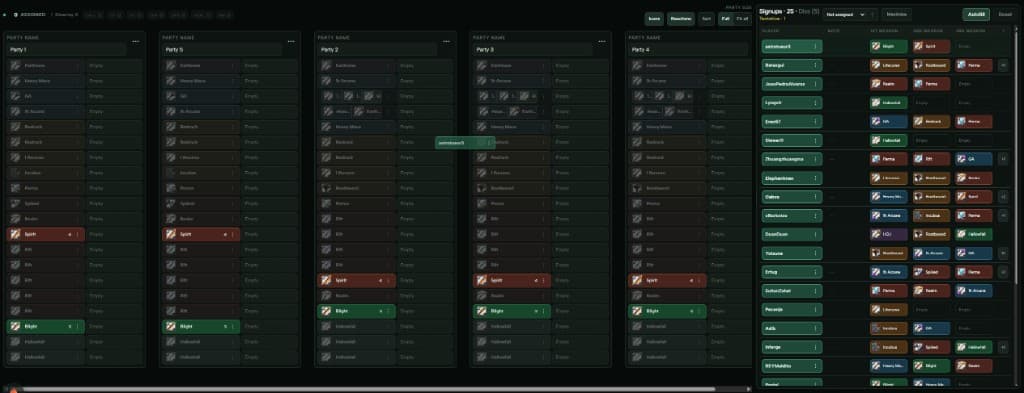
While you drag, slots that match their signup weapons light up so you can see where they fit.
Each role can also show a small number — how many unassigned signups can still fill that slot.
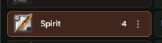
Once placed, the player shows in the party column.

Their own Your signup box updates with party and build too.
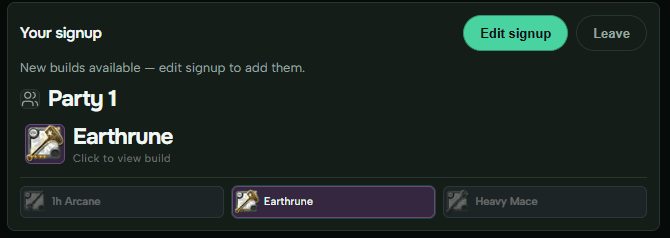
To remove someone, drag them from the party back to the signups list.
Assign manually — click a slot
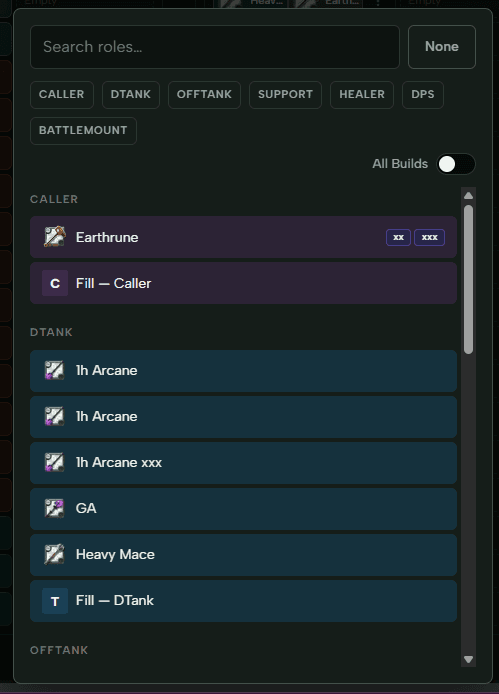
Click an empty slot (or one you want to change). The Assigning to popup lists players available for that role — both unassigned and already seated elsewhere.
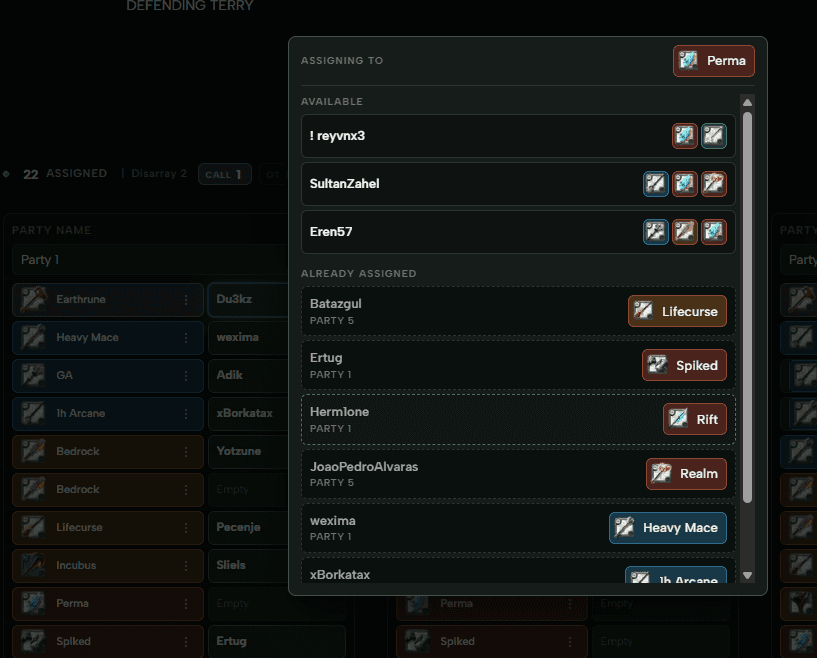
Pick a name to fill the seat.
Check a build
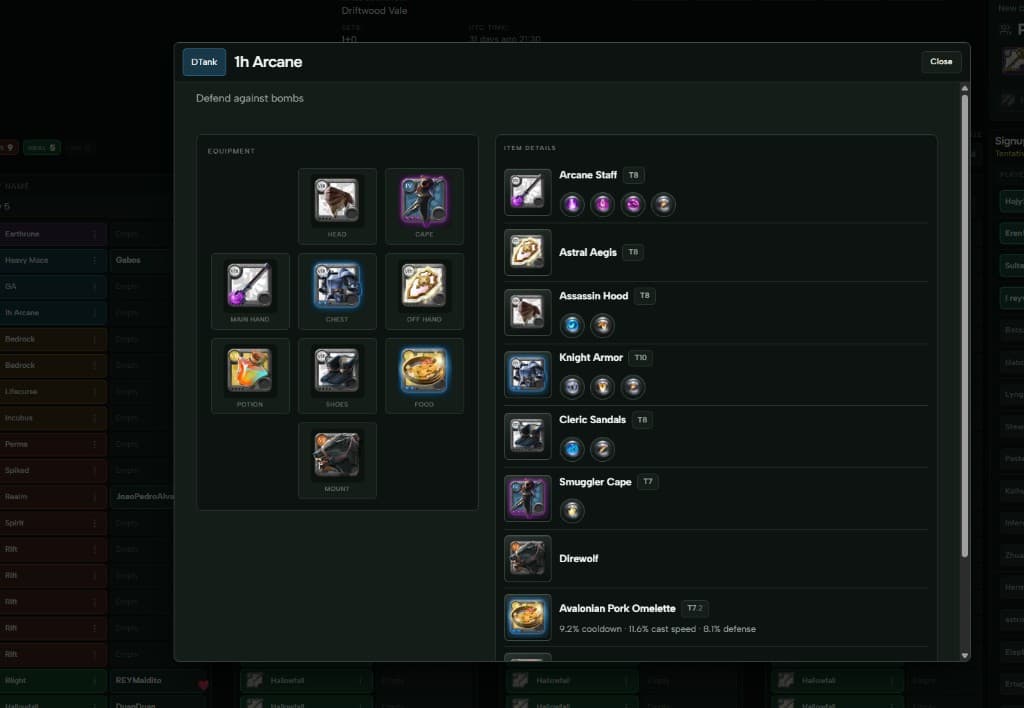
Click a role name on the left (not the player box) to open the full build — gear, tiers, abilities, and notes.
Autofill
Do not want to place everyone by hand? Hit Autofill on the signups panel and let the board fill open slots from signups.

You can still move people after.
Change a role on a slot
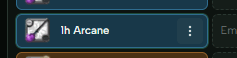
Use the ⋯ menu on a role row to swap which build that seat expects.
Search or filter by playstyle, then pick the build you need.
Edit event settings
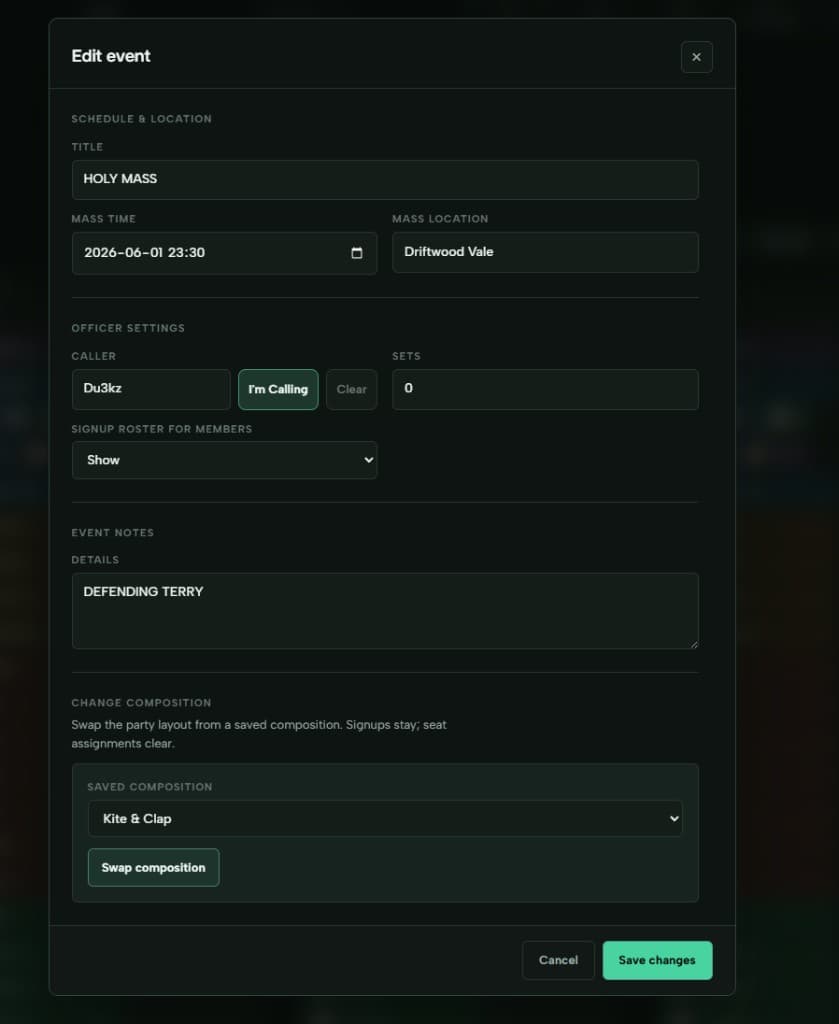
Edit opens mass time, location, caller, notes, and Swap composition if you need a different comp template. Save changes when done.
More parties
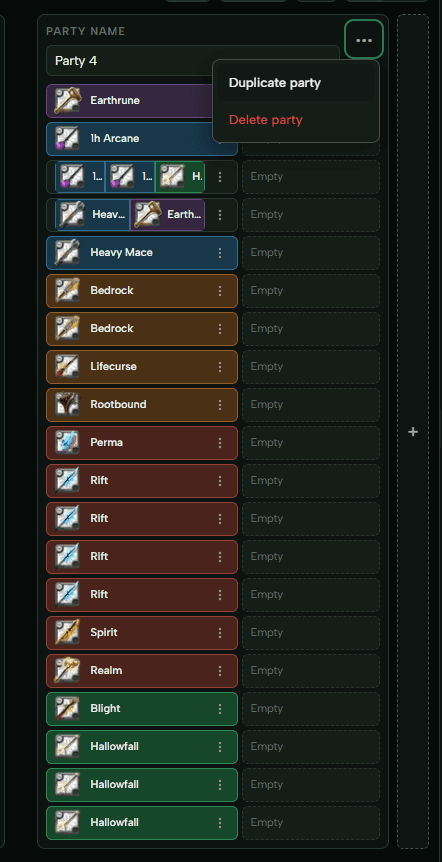
⋯ on a party header → Duplicate party to copy a layout. The big + on the right edge of the party row adds a new empty party.
Ping, voice, disarray
When assignments look good:
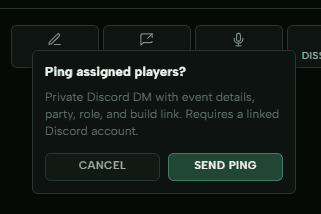
- Ping — DM assigned players on Discord with event info, party, role, and build link (needs a linked Discord account).
- Voice — see who is not in comms yet so you can chase them.
- Dissarray — headcount / disarray estimate for the comp.
Finish the event
Click Finish when mass is done. Signups close and the event is marked finished for payout.
Before you finish: get everyone into a slot if you can — assigned players are what payout and attendance use later.
More detail
Officer reference: How to assign users and How to create events. Player side: Signing up for events.